How to Manage Any VPS with SNBD Console and MCP Server
A Hosting Guides note from the SNBD Host team — written for teams running on BDIX hosting, OpenClaw VPS and managed n8n.

On this page
Managing servers across several providers can become messy fast. You may have one VPS at Hetzner, another at DigitalOcean, and a third at SNBD HOST. Each provider has its own dashboard, login, and tools.
SNBD Console gives you one place to manage them.
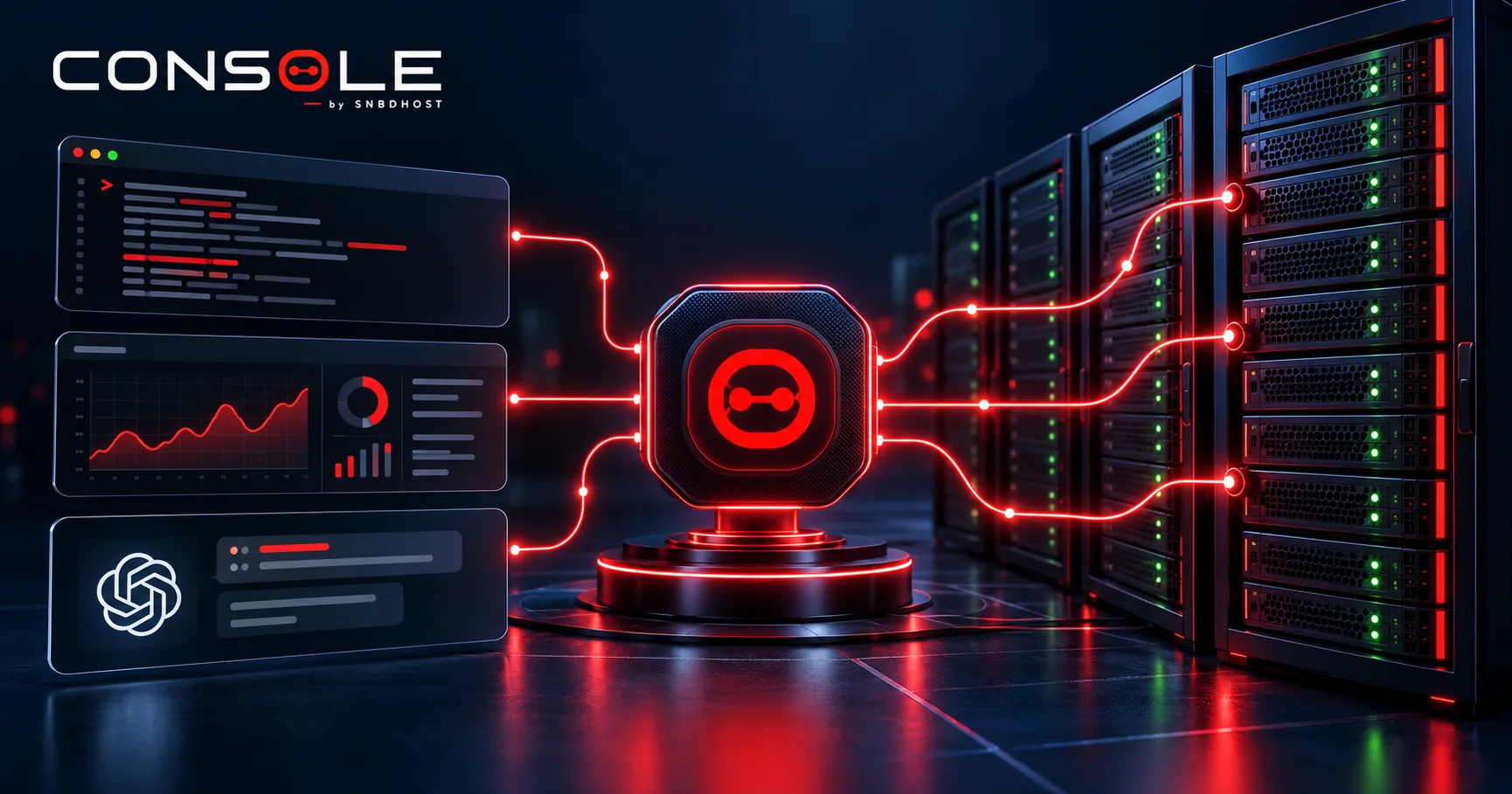
You can connect an SSH-accessible VPS to SNBD Console, then use a browser terminal, file manager, service controls, logs, and live server metrics from one dashboard. You can also connect the built-in MCP server to an AI client for approved server tasks.
What is SNBD Console?#
SNBD Console is a VPS management dashboard inside the SNBD HOST client panel.
It lets you manage supported servers from different providers in one place. Instead of switching between several panels, you can check server health, open a terminal, read logs, and manage services from SNBD Console.
After you connect a VPS, you can:
Open a browser-based terminal
Browse and edit files
Start, stop, or restart services
Check CPU, RAM, disk, and network use
Read server logs
View connected servers from one dashboard
This is useful for developers, agencies, and teams that manage more than one VPS.
What is an MCP server?#
MCP means Model Context Protocol. It is an open standard that helps AI clients connect to tools and data sources.
With the SNBD Console MCP server connected to an AI client, you can ask the client to perform approved server tasks. For example, it may check disk space, read a log, or restart a service.
Learn more at the official Model Context Protocol website.
MCP does not remove the need for access control. Review permissions carefully and give each user or API key only the access it needs.
How to connect any VPS to SNBD Console#
You can connect a VPS from SNBD HOST or another provider, as long as you have SSH access.
1. Open SNBD Console#
Log in to your SNBD HOST client panel. Go to Services → Console, then select Add Server.
Give the server a clear name, such as:
Production API – Singapore
Clear names make it easier to avoid running a command on the wrong server.
2. Create an installation token#
SNBD Console creates a temporary installation token for the server.
Treat this token like a password. Do not share it in public chats, screenshots, or support tickets. Use it only on the VPS you are connecting.
3. Run the installer on your VPS#
Connect to the VPS through SSH and run the installer command shown in SNBD Console.
The installer registers the SNBD agent and starts it as a system service. The agent connects outward to SNBD Console, so you do not need to open a new inbound firewall port only for Console access.
4. Confirm the server is online#
After installation, the server should appear in SNBD Console.
Check the server name, operating status, and basic metrics first. Then test the browser terminal and log viewer before relying on it for production work.
Connect SNBD Console to your AI client#
After your VPS is connected, you can configure the SNBD Console MCP server in a supported AI client.
The exact setup depends on the client. In general, you will:
Open the MCP or developer settings in your AI client.
Copy the SNBD Console MCP connection details from your panel.
Add your Console-only API key.
Restart the AI client if required.
Confirm that SNBD Console tools appear in the client.
Once connected, you can ask the AI client to help with tasks such as:
Checking disk or memory use
Reading recent application errors
Checking whether a service is running
Restarting an approved service
Running a deployment command
Reviewing server logs during troubleshooting
Always review the requested action before allowing it to run. Start with read-only tasks, such as checking metrics or reading logs, before allowing restart or deployment commands.
Who should use SNBD Console?#
Developers with VPS servers at different providers#
Use one dashboard to manage servers across several providers without switching between multiple panels.
Agencies managing client infrastructure#
Keep servers organised by client and project. Give each team member the access level they need.
n8n and automation users#
Use SNBD Console with your automation setup to monitor server health, create alerts, or respond to known service problems.
Teams using AI development tools#
Connect your AI client to your server tools through MCP, while keeping access limited to the Console scope.
Why use one VPS management dashboard?#
A single dashboard saves time when your infrastructure grows.
Instead of searching for IP addresses, opening several provider panels, and copying commands between windows, you can work from one place. This also helps reduce small mistakes, such as restarting the wrong service or logging in to the wrong server.
SNBD Console is designed to help you manage your VPS servers, wherever they are hosted.
Get started#
Log in to your SNBD HOST panel and open Services → Console to connect your first server.
Need a VPS first? View SNBD HOST BDIX VPS plans for Bangladesh-focused workloads or USA VPS plans for global applications.
Frequently asked questions#
Can I connect a VPS from another provider?#
Yes, if the VPS meets SNBD Console requirements and you have SSH access.
Do I need to open a new inbound firewall port?#
The Console agent connects outward to SNBD, so a separate inbound port for Console is not normally required. Check the current installation requirements before setup.
Can an AI client restart my server services?#
It can request an approved action through the MCP connection. Review permissions and actions before allowing production changes.
Is SNBD Console only for SNBD HOST servers?#
No. SNBD Console is designed to help you manage compatible VPS servers from multiple providers.
Written by
Yeamin Adib
Yeamin Adib is the founder of SNBD Host, building refined, reliable hosting and AI infrastructure, and sharing practical knowledge with creators and businesses from Kamloops, Canada.